
"Is she settling in? Is she eating? Can I see her?" Every kennel with webcams knows the phone call. Owners love the cameras, but finding the right camera, the right link and the right login for each guest takes staff time you don't have at drop-off. If you use iDogCam, KennelBooker now does that part for you: owners see the camera for their pet's run, in the portal and app they already use, for as long as their pet is checked in.
What it does
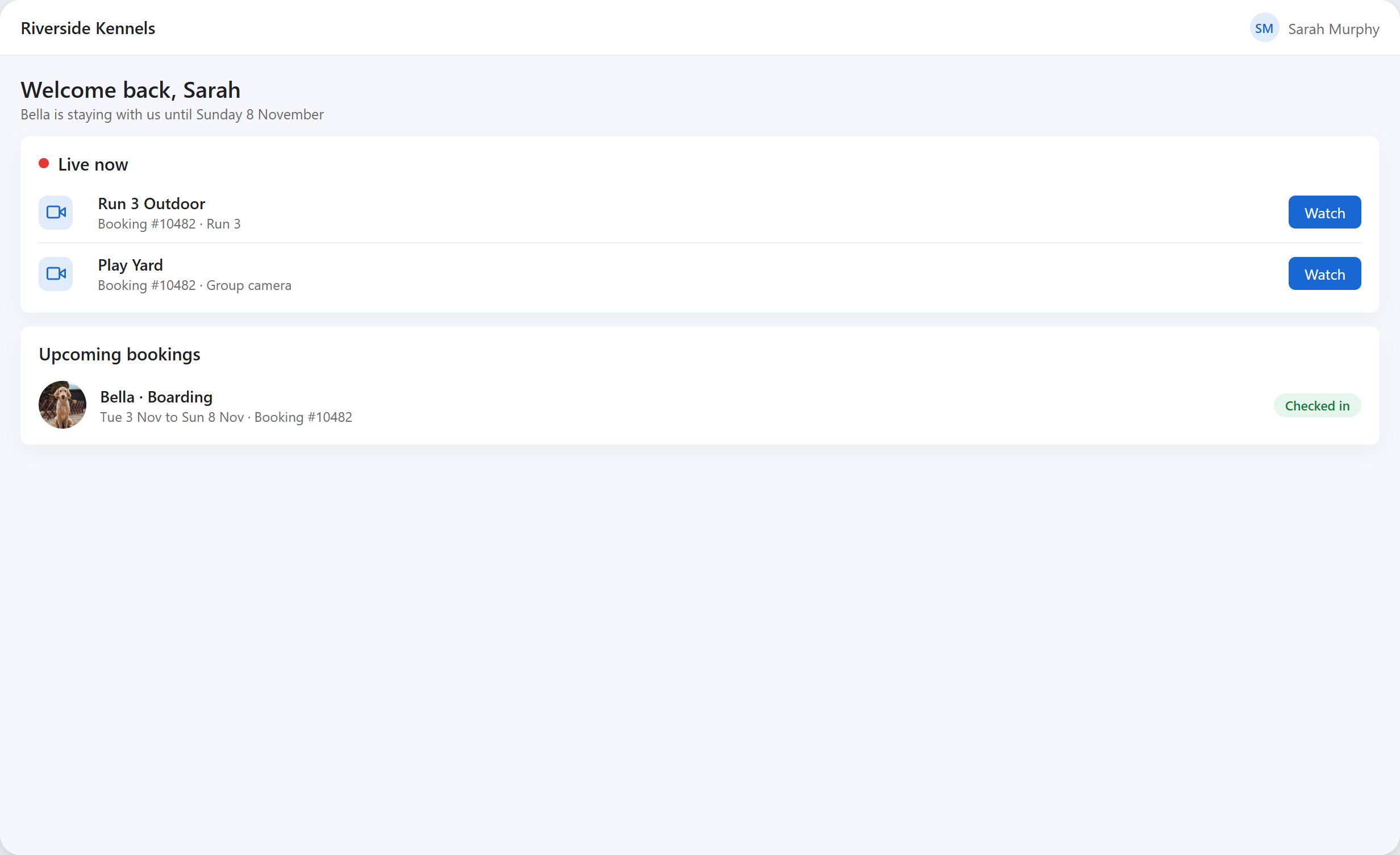
The iDogCam integration links your iDogCam cameras to your runs in KennelBooker. When a boarding booking is checked in, the owner sees a Watch live button on their booking and a Live now card on their portal home page. One tap opens the camera for the run their pet is in, plus any shared cameras you've marked as group cameras, such as a play yard.
When the booking is checked out, the button and the card disappear. Nobody has to send links, change passwords or remember to switch anything off.
How to set it up
You'll need an iDogCam account with your cameras already working. iDogCam gives you two codes for KennelBooker: your iDogCam ID and an ERP code.
- Go to Settings > iDogCam.
- Switch on Show iDogCam cameras to customers, enter your iDogCam ID and ERP code, and press Save.
- Press Load cameras from iDogCam. Your cameras appear in a list with their iDogCam names.
- Tick Group camera for shared areas like a play yard or paddock. Untick Show for any camera you don't want owners to see, set the order, and press Save cameras.
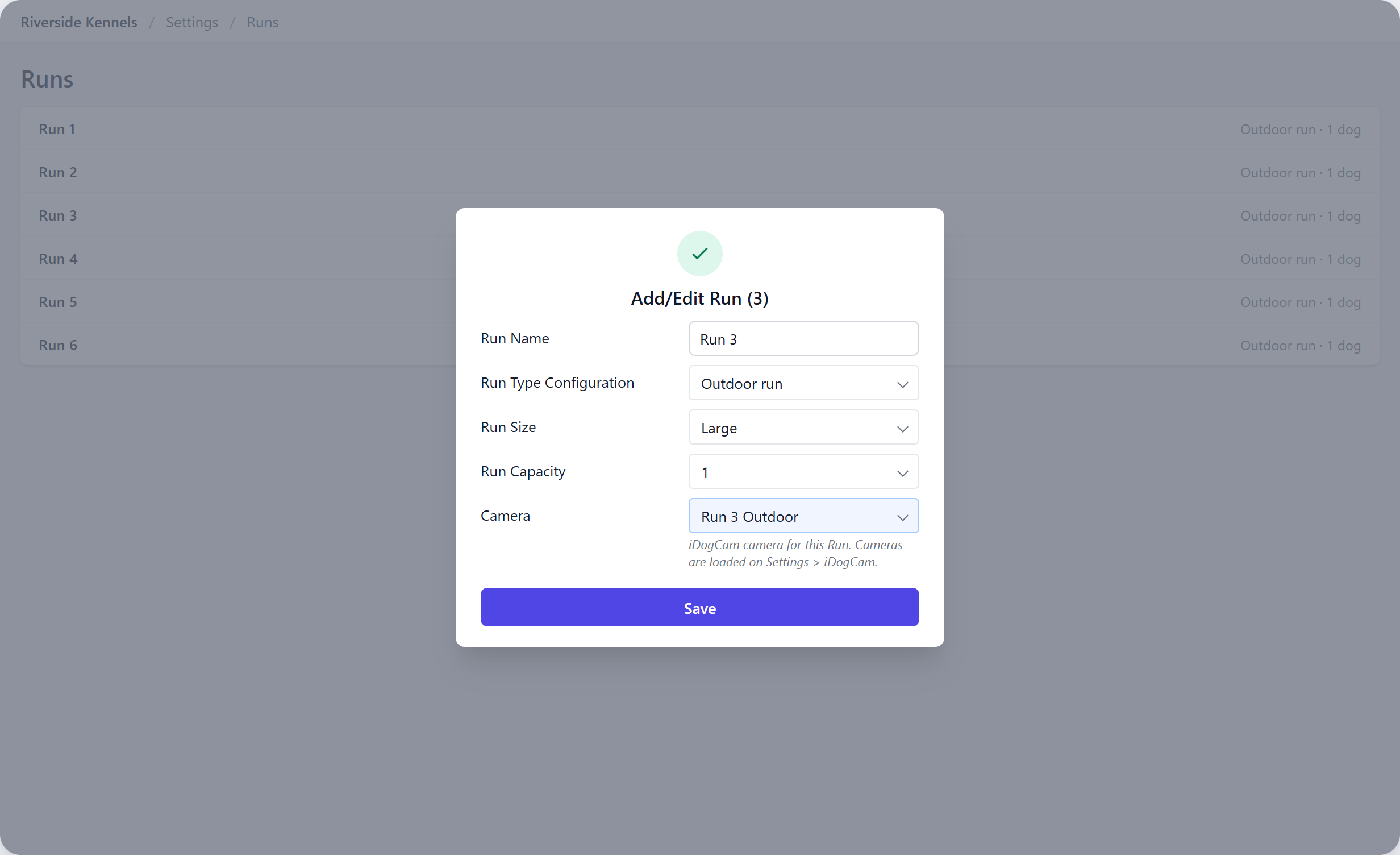
- Go to Settings > Runs, edit each run, and pick its camera from the new Camera dropdown.
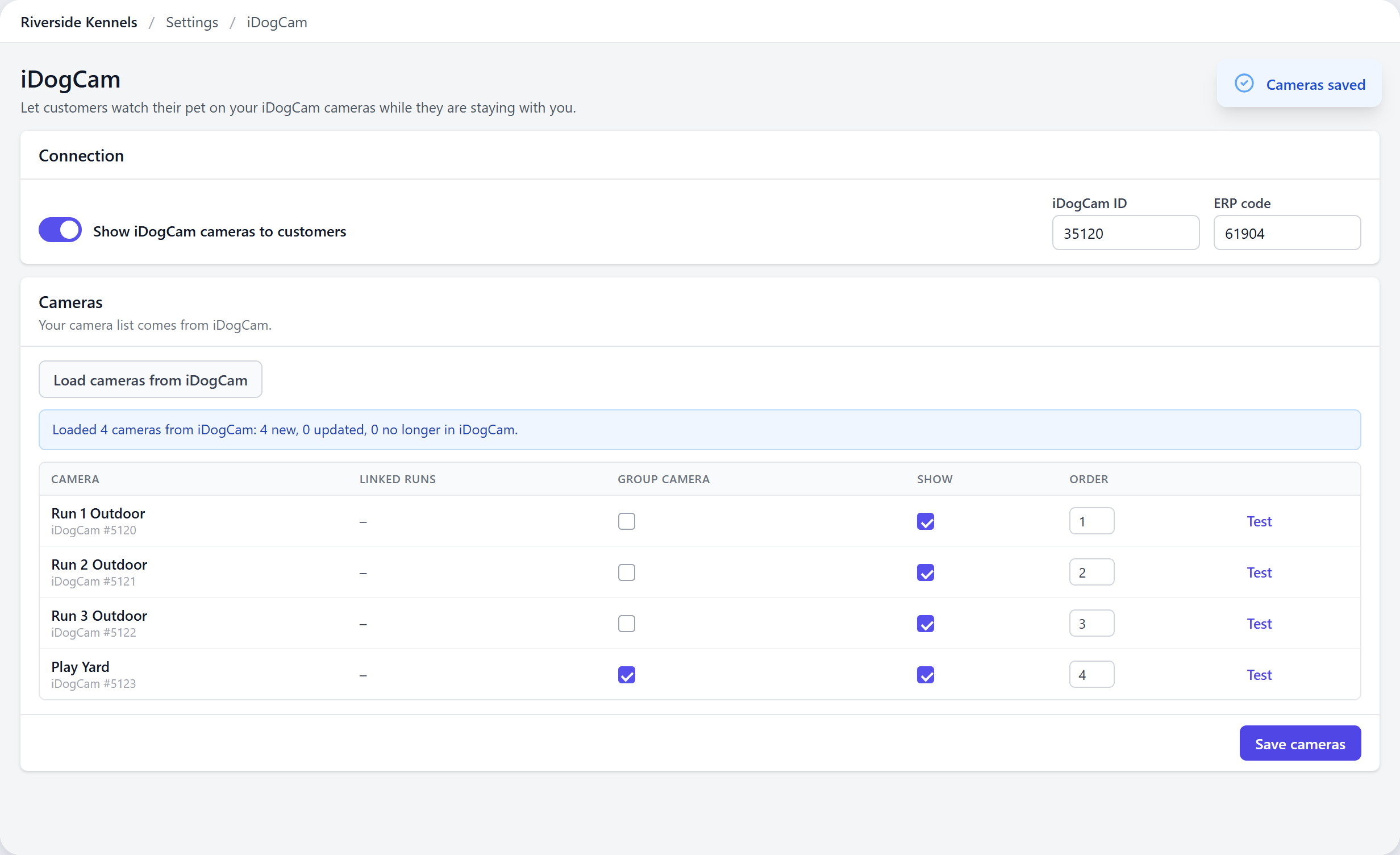
Each Test link opens that camera in a new tab, so you can check it before an owner does. If you add or rename a camera in iDogCam later, press Load cameras again. Cameras you've removed from iDogCam are marked "No longer in iDogCam" rather than deleted, so your run links stay in place.
Free or paid, your choice
Under Who can watch, choose who sees the cameras. Leave it on Everyone with a checked-in boarding booking to include cameras with every stay. To charge for them, create an additional service such as "Camera access" under Settings > Additional Services and choose it here. Owners then only see the cameras when that service is on their booking, whether your team added it at the desk or the owner bought it when booking online.
What owners see
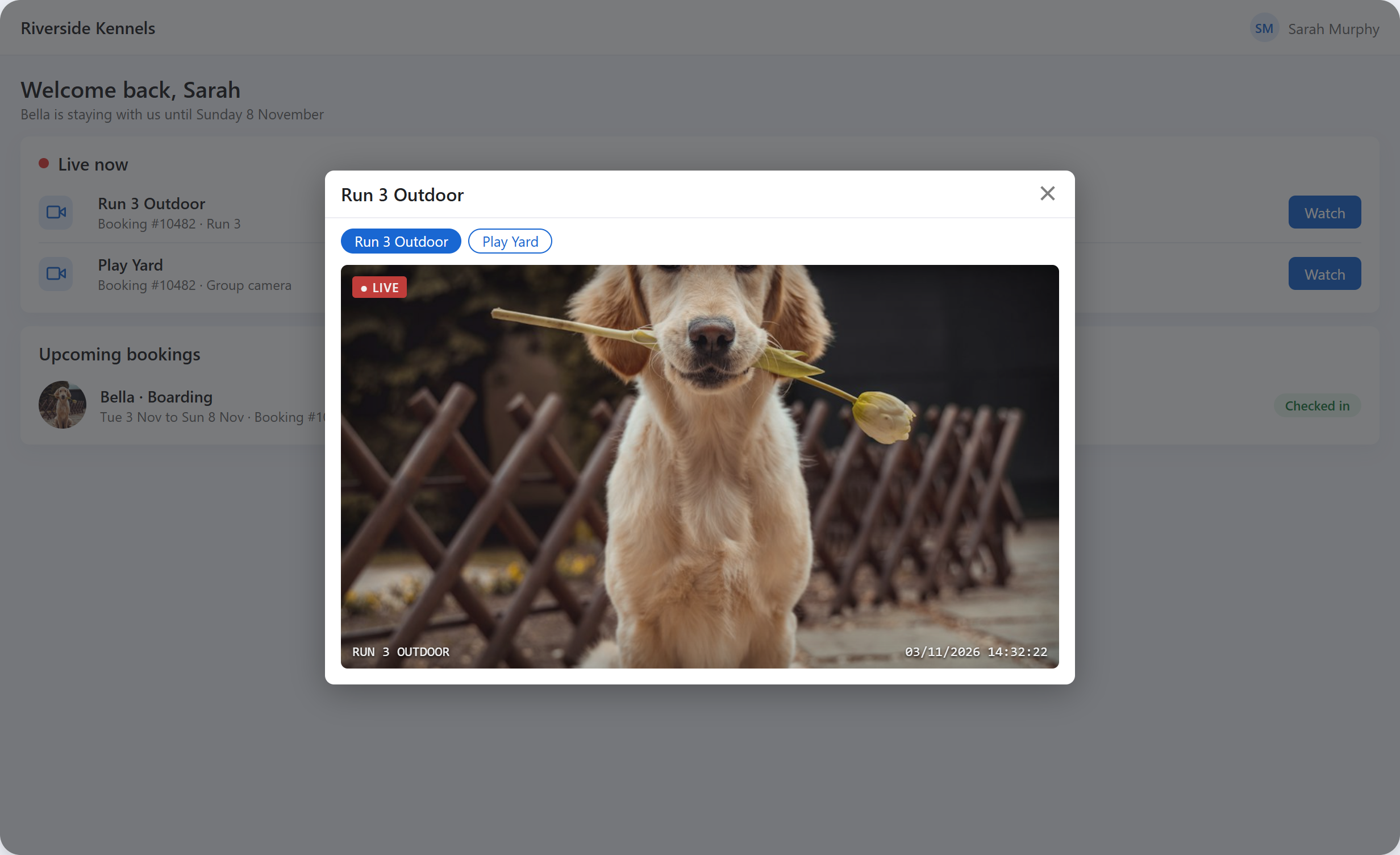
Owners tap Watch and the camera opens over the page. If there's more than one camera, they switch between them without leaving. It works in the customer portal and the KennelBooker pet parent app.
You can also put the camera link in your messages. Add the new [webcam_link] tag to your boarding confirmation, reminder or receipt emails, or to your check-in text or push message. It becomes a "Watch live camera" link that opens the booking with the camera ready. If an owner clicks it before check-in, they see a note that viewing opens once their pet is checked in. If the booking doesn't qualify, the tag is left out, so you can add it to your templates without worrying about owners who haven't paid for camera access.
Your staff get a Camera button next to the run on the boarding booking page, to check the view while they're talking to an owner.
Why we built it
Plenty of kennels already have webcams, and owners love being able to check in on their dog. What was missing was a link between the cameras and the bookings, so someone had to hand out links and keep track of who should be watching. Linking iDogCam to your runs and bookings means the right owner sees the right camera, and the access stops when their pet goes home.
Good to know
- Cameras show for boarding bookings that are checked in. Daycare bookings don't show cameras yet.
- A paid "Camera access" service needs to be on the booking itself. One bought as part of a package doesn't count.
- The video comes from iDogCam, so your iDogCam account and its viewing hours still apply.
Available now for KennelBooker customers who use iDogCam. Find it under Settings > iDogCam. Ask iDogCam for your iDogCam ID and ERP code for KennelBooker.
Frequently asked questions
Can dog owners watch their dog on camera while it's boarding?
Yes, if the kennel uses iDogCam and KennelBooker. Once the kennel connects iDogCam, owners with a checked-in boarding booking get a Watch live button in the KennelBooker customer portal and app, showing the camera for their pet's run and any shared play yard cameras.
Do I need iDogCam to use live cameras in KennelBooker?
Yes. The cameras, recording and video stream are iDogCam's. KennelBooker connects to your iDogCam account with your iDogCam ID and ERP code, both of which iDogCam gives you, and decides which owners are shown which camera.
Can I charge owners for webcam access?
Yes. Create an additional service such as Camera access, then choose it under Who can watch on Settings > iDogCam. Owners only see the cameras when that service is on their booking, whether your staff added it or the owner bought it online.
Where do I set it up?
Go to Settings > iDogCam. Switch on Show iDogCam cameras to customers, enter your iDogCam ID and ERP code, save, then press Load cameras from iDogCam. Link each camera to its run by editing the run under Settings > Runs.